
Change Image Color or Hue
Change the color of an image in your browser. Shift the hue of the whole picture, or pick one color and replace it with another while everything else stays exactly as it was.
Drop an image here
JPG, PNG or WebP
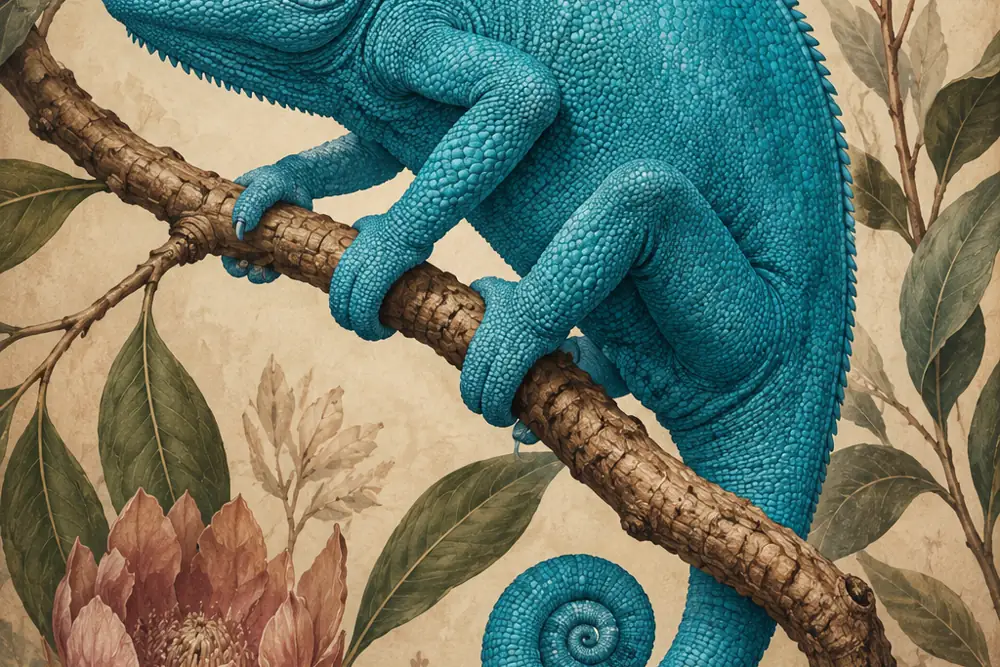
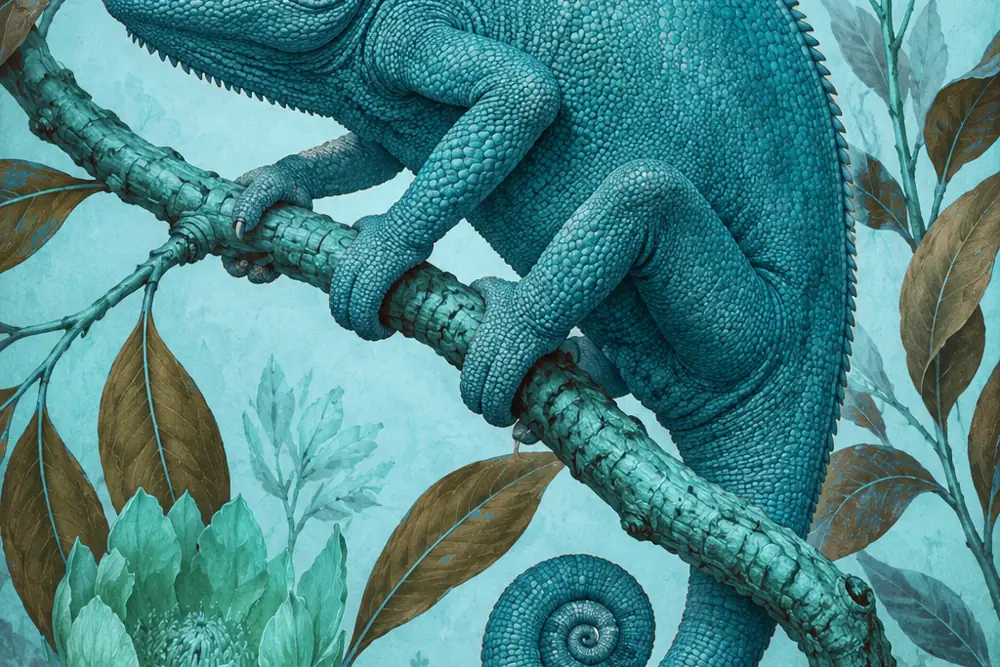 BeforeAfter
- Nothing uploadedYour images stay on your device
- Works offlineOnce this page has loaded
- No size capOnly your device's memory
- No watermarkYou get back only your image
- No accountNothing to sign up for
How it works
- Drop an image onto the box above, or click to choose one.
- Move the hue slider to rotate every color in the picture, or tick Only change one color first.
- In that mode, click the image to pick the color you want to change, then use the hue slider to move it. Grays, black and white are never affected.
- Download the result at full resolution.
Common use cases
- Producing a logo in a second brand color without opening a design app.
- Changing the color of one thing in a photo, a shirt, a car or a wall, and leaving everything around it alone.
- Making color variants of a product image for a listing.
- Matching a graphic to a client's palette.
- Warming or cooling a photo that came out the wrong color temperature.
- Turning an icon set from one color to another in a few seconds each.
Frequently asked questions
- How do I replace one color with another?
- Tick Only change one color, then click the image on the color you want to replace. Set how wide a range around it to include, and move the hue slider until it becomes the color you want. Everything outside that range stays exactly as it was, which is what makes it work on a logo or a product photo rather than only on a whole picture.
- Can I change the color of just one object, like a shirt or a car?
- Yes, and this is the one-color mode. Tick Only change one color, click the shirt, and widen the range until the whole shirt is selected and the skin and background are not. Then move the hue slider to the color you want. It works best when the object is a different color from what surrounds it: a red shirt against a white wall recolors cleanly, a red shirt against a red sofa takes the sofa with it, because the tool selects by color, not by shape.
- Does it work on photos as well as logos and graphics?
- Yes. A photo has thousands of slightly different shades, so shifting the hue of the whole picture keeps all of them in step and the result still looks like a photo, just in different colors. For changing one object in a photo, the range control matters more than it does on a flat graphic, because the object's shadows and highlights are all slightly different colors that need to be included.
- What does shifting the hue do?
- It turns every color around the color wheel by the same amount, so the picture keeps all of its light and shade but changes its colors together: a 120 degree shift sends red to green, green to blue and blue to red. It is the quickest way to try a whole photo or graphic in a different color scheme, and the slider shows the result live as you drag it.
- Why do the black and white parts never change?
- Because they have no color to shift. Gray, black and white sit at zero saturation, so rotating the hue of a gray pixel produces the same gray. The tool also deliberately ignores near-gray pixels when you are targeting one color, so a red logo on a white background with black text recolors the logo and nothing else.
- Does this work like the hue-rotate filter in CSS?
- It does the same job but more accurately. The CSS and SVG hue-rotate filter is a linear approximation that drifts: saturated colors lose saturation and brightness shifts as you rotate. This converts each pixel properly and rotates the actual hue, so a 120 degree shift moves red to green exactly, which is what you would expect and what the filter does not quite do.
- Will this change the image quality?
- Only in the sense that a JPG has to be re-encoded when it is saved, which costs a little. The color change itself is exact. Saving a PNG loses nothing at all.
- How do I make an image black and white?
- Drag the saturation slider to zero. That removes all color while keeping the lightness of every pixel, which is what people usually mean by grayscale.
- Is my image uploaded to a server?
- No. The recoloring happens entirely in your own browser, so the file never leaves your device and nothing is stored.
Related tools
- Change Logo ColorMake a logo white, black or any color, keeping its transparent background.
- Color SplashKeep one color and turn everything else black and white.
- Invert ColorsFlip an image to its negative, or flip only light and dark and keep the colors.
- Color Picker from ImageClick any pixel for its HEX, RGB or HSL code, or pull the whole palette out of an image.
- Remove White BackgroundMake a white background transparent. Best for logos, screenshots, and product shots on white.
- Gradient MapRecolor a photo along a gradient you can edit: sunset, thermal, neon or your own colors.
Understand what this does
Plain explanations of what is happening to your file, and what it costs you.
- RGB vs CMYK: which one do you actually need?One is light, the other is ink, and that single fact explains why the bright blue on your screen comes back from the printer looking flat.
- Logo variations: the versions every brand needsA full color version, a white one, and a black one, at minimum. Which you need, what each is for, and how to make them from the logo you have.