
Turn a Photo into a Coloring Page
This free tool turns a photo into a printable coloring page: clean black outlines on white, with closed shapes you can actually color in. Nothing is uploaded, and you can print it or save it as a PNG straight away.
Drop a photo here
JPG, PNG or WebP
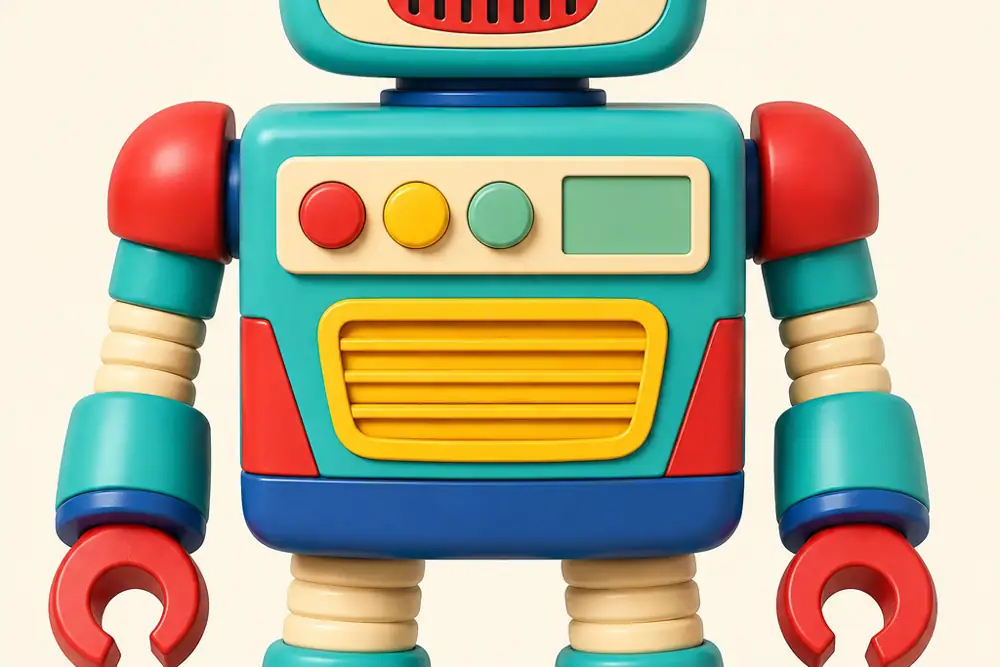
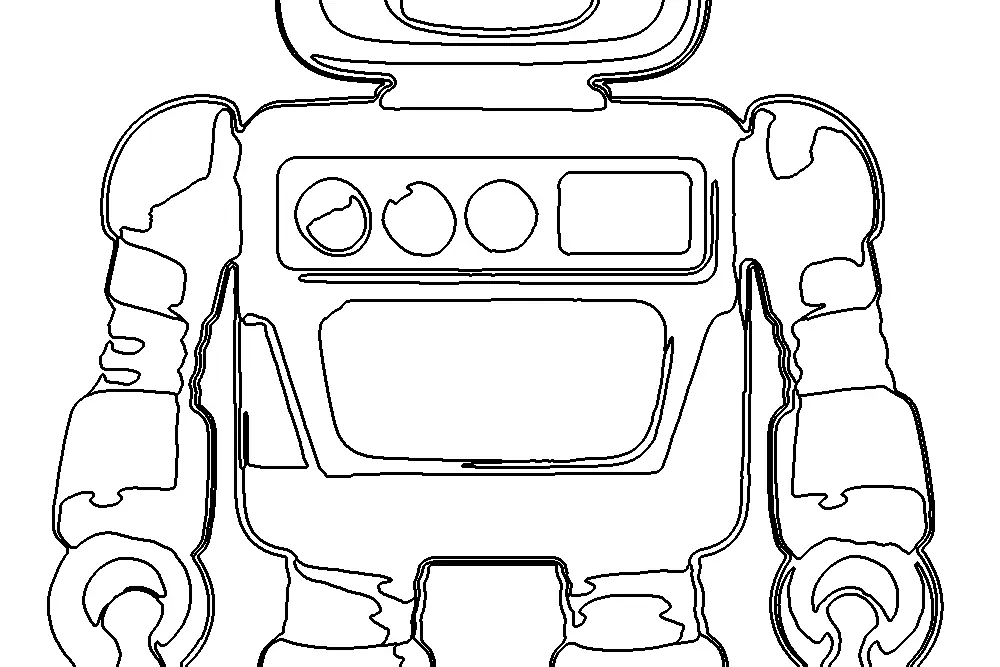 BeforeAfter
- Nothing uploadedYour images stay on your device
- Works offlineOnce this page has loaded
- No size capOnly your device's memory
- No watermarkYou get back only your image
- No accountNothing to sign up for
How it works
- Drop a photo onto the box above, paste one with Ctrl+V, or choose a file.
- The page is drawn immediately, so you judge it on your own photo rather than a sample.
- Use detail to decide how much of the picture becomes line, and ignore small areas to drop shapes too small to color.
- Thicken the line for younger children or a cheaper printer, then download the PNG and print it.
Common use cases
- Turning a photo of the family pet into a page a child will actually recognize.
- Making a birthday party activity out of a photo of the birthday child.
- Giving a classroom a coloring sheet of something they have just been studying.
- Turning a drawing or a logo into an outline to trace or to paint by hand.
- Making a keepsake page from a holiday photo, a house, or a grandparent's portrait.
Frequently asked questions
- Can I turn a photo into line art?
- Yes, that is exactly what this does: the photo becomes clean black outlines on white, which is line art as much as it is a coloring page. Lower the detail for bold, simple lines, raise it for more of the picture, and adjust the line weight to taste. Download it as a PNG to trace, print or color.
- How do I turn a photo into a coloring page?
- Drop it above. The page is drawn straight away and you can download it immediately, with no account and nothing to install. If it comes out too busy, pull the detail slider down: that is the control that decides how much of the photo becomes line.
- Which photos make good coloring pages?
- One clear subject against a background that is not competing with it. A pet, a face, a building, a single object on a plain surface. What does not work is a busy scene: a crowded street, splashing water, foliage, a patterned rug. Those contain thousands of genuinely separate small shapes, and a faithful drawing of all of them is a page of scribble no matter how clean the lines are. That is true of every tool that does this, not just ours, and the fastest fix is a different photo rather than different settings.
- Why are the outlines closed instead of broken?
- Because of how the page is drawn. The obvious approach is edge detection, which looks for places the picture changes sharply and draws a mark there. It produces broken, doubled lines with gaps in them, and a gap matters: a child filling a shape with a marker expects the color to stop at the outline, and on screen a paint bucket floods the whole page through a single missing pixel. So this works the other way round. It flattens the photo into a few flat regions first and then draws the borders between them, which means every outline closes by definition, because a border is the line where one region stops and another starts.
- What do the three sliders actually do?
- Detail decides how much of the photo survives as line, by controlling how hard the picture is smoothed and how few colors it is reduced to. Ignore small areas throws away any shape too small to get a crayon into, which is what removes the noise from grass, gravel, hair and fabric. Line weight is thickness: heavier lines suit younger children, thin lines suit detailed pages for adults. If a page looks like a black scribble, reduce detail first and raise ignore small areas second.
- Should I save it as PNG or JPG?
- PNG, and it is not a close call. A coloring page is two colors with hard edges, which is exactly what PNG stores perfectly and exactly what JPG handles worst: JPG works by throwing away fine detail around sharp edges, so every outline picks up a halo of gray smudge. That looks poor on screen and prints worse, because a printer renders those gray pixels as real ink. PNG is also usually the smaller file for line art.
- What size should I print it at?
- Whatever the photo already is, in most cases. The download is the full resolution of the picture you dropped in, so a phone photo prints cleanly at A4 or Letter without any resizing. Line weight is set relative to the picture rather than in pixels, so a setting of two looks the same on a small image and a large one, and the preview above is a fair guide to what comes out of the printer.
- Are my photos uploaded to a server?
- No. The page is drawn in your own browser using the Canvas API. The file never leaves your device and nothing is stored.
Related tools
- Grayscale ImageTurn photos black and white, and control which colors go light or dark.
- DuotoneMap a photo onto two colors, the way a poster or a Spotify cover does.
- Image FiltersBlack and white, sepia, faded or vivid, applied to a whole batch at once.
- PNG to SVGTrace a logo, icon or drawing into a real, scalable SVG with clean shapes.
- Halftone GeneratorTurn a photo into halftone dots: newspaper, comic book CMYK or your own colors, as PNG or vector SVG.