
Free Color Splash Tool
This free tool keeps one color in a photo and turns everything else black and white: click the color you want to keep and the rest of the picture drops to gray around it.
Drop an image here
JPG, PNG or WebP
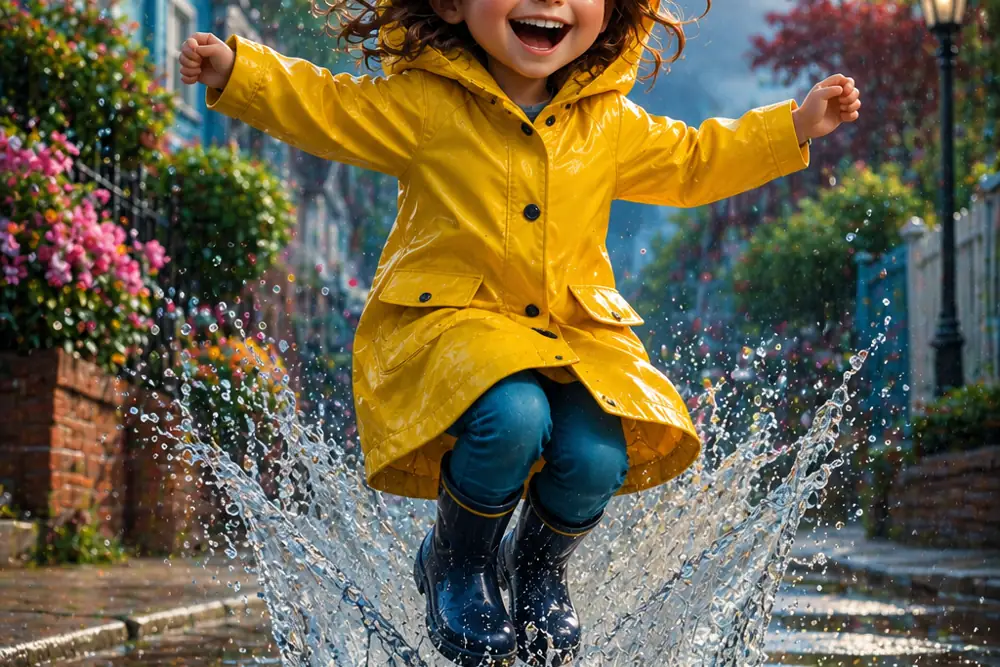
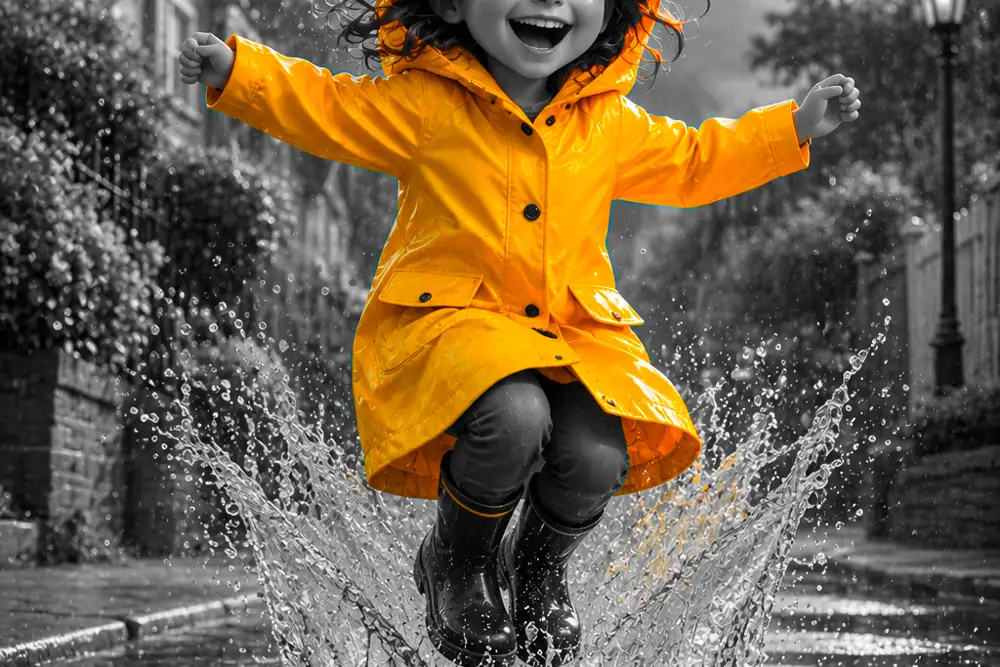 BeforeAfter
- Nothing uploadedYour images stay on your device
- Works offlineOnce this page has loaded
- No size capOnly your device's memory
- No watermarkYou get back only your image
- No accountNothing to sign up for
How it works
- Drop a photo onto the box above, paste one with Ctrl+V, or choose one.
- Click the thing you want to keep in color. The color is read off the pixel you clicked, so there is no number to guess.
- If part of the object went gray too, widen the first slider: a red coat covers a range of reds, not one exact shade.
- Use the softness slider if the edge of the color looks ragged, then download at full resolution.
Common use cases
- Keeping a red umbrella, a yellow taxi or a bunch of flowers in color against a black and white street.
- Making a product photo where only the product holds its color and the setting does not compete with it.
- Pulling a brand color out of a busy photo for a poster or a social post.
- Drawing the eye to one person in a group shot.
- Making a wedding photo where only the bouquet stays in color, which is the classic use of the effect.
Frequently asked questions
- How do I keep one color and make the rest black and white?
- Drop the photo above and click the color you want to keep. The tool reads the color from the pixel you clicked, keeps everything close to it, and converts the rest to black and white. If part of the object also went gray, widen the first slider until it comes back.
- What is the color splash effect called?
- Selective color, color splash, color popping and spot color are all names for the same thing. Photographers usually call it selective color; phone apps usually call it color splash. It is one of the oldest darkroom-era tricks still in use, and it is the feature most mobile photo apps put behind a subscription.
- Why did part of the object turn gray as well?
- Because a real object is never one exact shade. Folds, shadow and highlight spread a red coat across twenty degrees or more of the color wheel, so a narrow selection catches only part of it. Widen the first slider and the rest comes back. If a shadowed area still refuses, it is genuinely close to gray by then, and there is no color left in it to keep.
- Why does the edge of the kept color look jagged?
- That happens when the color is cut off abruptly at the boundary rather than faded out. The softness slider blends the change over the last few degrees instead, which gives a gradual edge rather than a hard line following nothing in the picture. Raise it if the border looks bitten or mottled, lower it if you want a sharp graphic effect.
- Why are the grays and shadows never kept, even when I pick a dark color?
- A near-gray pixel does have a color reading, but it is meaningless: an artifact of whichever channel happens to sit a shade higher. Keeping those would leave the shadows, the concrete and a white shirt each holding a faint tint, so the picture would look muddy instead of black and white. They are converted regardless of which color you pick.
- Are my photos uploaded to a server?
- No. Everything happens in your own browser using the Canvas API. The photo never leaves your device and nothing is stored.
Related tools
- Grayscale ImageTurn photos black and white, and control which colors go light or dark.
- Change Image ColorShift the hue, saturation and lightness, or recolor just one color.
- Color Picker from ImageClick any pixel for its HEX, RGB or HSL code, or pull the whole palette out of an image.
- Gradient MapRecolor a photo along a gradient you can edit: sunset, thermal, neon or your own colors.
Understand what this does
Plain explanations of what is happening to your file, and what it costs you.